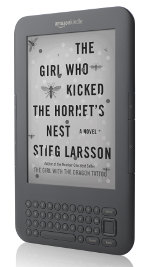
Kindle 3 Shortcuts, Hot Keys, and Hidden Features
For whatever reason, Amazon doesn’t mention most of these Kindle 3 shortcuts and keyboard hot keys in the Kindle user guide.
The coolest hidden feature is the screenshot. The files get saved to the Kindle in .PNG format. Just plug the Kindle 3 in to your computer with the USB cable and open up the documents folder to find them.
Unfortunately, I haven’t been able to figure out any shortcuts for the Kindle’s new web browser. It would be cool to be able to open the bookmarks menu and be able to use hot keys for zooming in and out, but so far nothing seems to work. At least it works great for downloading free Kindle ebooks.
Please post any other Kindle 3 shortcuts, hot keys, and hidden features that you may happen to find.
Kindle 3 Shortcuts: General
- alt + shift + G = screenshot
- alt + G = screen refresh
- shift + alt + m = play minesweeper (from homescreen)
- alt + home = Kindle Store
- alt + top row of letters on keyboard = numbers 1-9
- hit menu to check the time
- hit menu on homescreen to see available memory
- turn off kindle 3 by pressing and holding the power slide for 7 seconds
- reset the kindle by pressing and holding the power slide for 15 seconds (restart is also in settings then menu)
- change primary dictionary by going to settings then menu
Kindle 3 Hot Keys While Reading
- alt + B = add and remove bookmarks
- right arrow on nav controller = skip to next chapter
- left arrow on nav controller = skip to previous chapter
Text-to-Speech
- shift + Sym = Turn text to speech on and off
- back turns off text to speech
- spacebar pauses text to speech
- set cursor down the page to start text to speech from there
Music Controls
- alt + space = turn music on and off
- alt + f = skip to next track
Kindle 3 Image Viewer
Like the earlier Kindles, the Kindle 3 has a hidden image viewer. It really doesn’t serve much purpose and doesn’t work all that great, but here are the steps needed to set up the Image Viewer if you want to try it.
- Plug the Kindle 3 into your computer with the USB cable.
- Open the Kindle 3 as if you were adding ebooks to it and create a new folder among the other folders, not inside one of the other folders, and name it “pictures”.
- Inside the “pictures” folder, create another folder to add the images into. Adding images directly in the “pictures” folder will not work. You can create multiple folders to have different collections if you want.
- Safely unplug the Kindle from your computer and then tap alt + z on the homescreen to add the newly created folders to the book list. Click on the folder and the Image Viewer will launch.
Image Viewer Functions
- q = zoom in
- w = zoom out
- e = reset zoom
- c = actual size
- f = full-screen
- r = rotate
- nav controller = pan
- page forward and back = cycle through images
Filed under: Amazon Kindle, How To | Tags: kindle hot keys, kindle shortcuts | 56 Comments »