
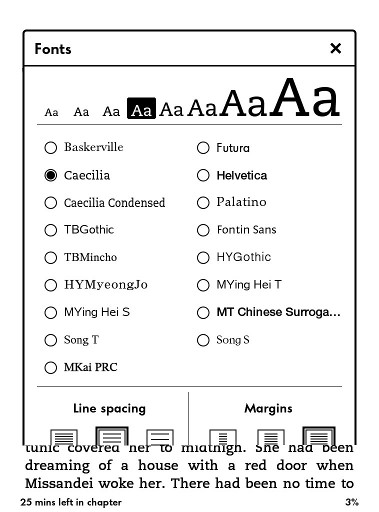
So I was doing some reading on my Kindle Paperwhite last night and started to wonder if there was an easy way to add additional font choices to the list without jailbreaking and hacking.
As it turns out, there is an easy way to add custom fonts to the Kindle Paperwhite. Basically all you need to do is add a folder with some new fonts to the Paperwhite along with an empty file. Restart, and that’s it.
With earlier Kindles (except the Kindle Touch) all one had to do to add custom fonts was to load in some fonts in a font folder and then use the Kindle Collections plugin and Calibre.
You can also use Calibre to embed fonts with the Kindle Paperwhite by converting the ebook to KF8 format. But this other method for the Paperwhite is even easier because you don’t need to use any additional programs at all.
I found this trick over at Mobileread hidden in the Kindle Touch font hack thread. This does not require any hacking, though, nor a jailbroken Kindle. Your Kindle Paperwhite just needs to be running 5.3.0 or newer firmware (mine is running 5.3.1).
Update: Unfortunately this trick does not work on the 2nd gen Kindle Paperwhite released in 2013. It only works for the original Paperwhite.
How to Add Fonts to Kindle Paperwhite
1. Plug your Kindle Paperwhite into your computer with the USB cable.
2. Copy an empty unspecified file type with this title onto the Kindle’s drive, the root directory (top level): USE_ALT_FONTS
3. Place a new folder on the Paperwhite’s root folder called “fonts”.
4. Place whatever OTF or TTF fonts you want in the fonts folder. They need to be named in a specific way for the variations of the fonts to work properly for bold, italic, etc. Like this:
- Fontname-Regular.ttf
- Fontname-Italic.ttf
- Fontname-Bold.ttf
- Fontname-BoldItalic.ttf
5. Once the fonts are added, unplug your Kindle from the computer and then got to Settings > Menu > Restart. Enjoy!
Now when you tap the “Aa” button when reading there’s a whole bunch of new font choices. The weird thing is I only added Fontin Sans to mine and all those others appeared on the list automatically (shown in the picture above). Also, the first time after restarting all the book covers disappeared from my Paperwhite’s homescreen for some reason. I restarted again and now everything is working fine.
Wow Nathan! Great find. I’m going to give it a try. My favorite font to read with is Georgia and the Kindle has never offered it.
What is the “unspecified file type?” Is that just a black file folder? How do you create one if not?
What I did was first created a txt file with that name on my desktop then removed the txt extension, which prompts Windows to ask if you’re sure you want to change the file type. Since you use a Mac the process is probably a bit different. In fact I just found this at MR: On Mac OS X use a terminal and type “touch USE_ALT_FONTS” and save it to your Kindle’s root directory.
Thanks Nathan! That was the first time I have ever used Terminal. Click this link for easy instructions on how to create a blank file on your desktop with Terminal.
The touch command for OS X was extremely helpful! Thank you!
Have you figured out where the weird fonts that you didn’t add came from? They showed up on mine, too. Oddly enough, I prefer MT Chinese Surrog…whatever that is!
Hey, it looks like some fonts are already loaded on the PW and only get activated when you add the USE_ALT_FONTS file. I didn’t load MT Chinese Surrogated or some of the other fonts on there, but I have them too! Sweet.
For Mac users, if you really want to see an amazing sans-serif font on the PW, add Verdana from your Mac>Library>Fonts folder on your computer. It looks great!
Wow! MKai PRC is like the best serif font I have ever seen! Why is Amazon hiding these fonts on our Kindles?
Some of them aren’t bad. I just wish we could adjust the darkness of the text like with PDFs and make them a little darker.
I like Mkai PRC of all fonts, but there’s a problem with characters like ” and ‘. An extra space is added. For example: Martin’s guest becomes Martin’ s Guest.
This is just a guess, but I would hazard to say that these are the default fonts for Japanese, Korean, Chinese (Traditional), and Chinese (Simplified), in Gothic and Mincho varieties respectively. Normally, these font options would only appear for books in these respective languages.
Yep, I think Ons is right.
It just gets better and better. Now if we could get the Kindle 4 Caecilia font onto the PW, it would be near perfect.
I’m getting this weird formatting error with most of the Chinese faults. With, for example, MKai PRC, there’ s a space between the contraction and the following letter everywhere in an ebook, like I have just demonstrated. Some fonts are fine, but I liked this one best …
I tried this tonight. Works like a charm! I would love to know why Amazon shipped with the questionable fonts they did, and left out some of the more obvious choices people seem to prefer.
At any rate, thanks for the tip!
Would love to be able to do this on my Kindle Fire HD too…any ideas on how to do that?
Thank you! As promised adding fonts to my Paperwhite was very simple and only took a couple of minutes to do.
I also like the MT Chinese Surrogated font that also ‘appeared’ on my Paperwhite after going through the process.
It works on Kindle Touch which has been updated to firmware 5.3.2 too.
Thanks for suggesting this nice and easy way to add custom fonts.
And I wonder how to reverse the USE_ALL_FONTS order. While I delete the fonts folder, what will I do to get back to the default fonts selection part when I type “Aa”?
TYPO! It should be USE_ALT_FONTS.
Great news, I will update my KT touch and then I will try this trick. Where I can find Paperwhite fonts?
Please also confirm me that this trick allows to use additional fonts and my preinstalled Kindle Touch fonts will be always available in the Aa font menu. Thank you.
UPDATERS BEWARE: adding fonts using this method does not work with the new Kindle Paperwhite 5.3.3 firmware update. I have lost that functionality since updating.
I am going to delete the fonts and blank USE_ALT_FONTS file and reinstall once I get some time this weekend (perhaps it will work again), but as for right now, I am back to the standard PW fonts.
Try restarting. I’ve heard that they come back after that.
Andrew, seems that Paperwhite fw 5.3.3 disable the workaround. Let us know if anyone succeeds to make it work with the latest firmware.
Thanks so much for this! I always used DroidSerif on my Kindle Keyboard and even though the new Touch/Paperwhite fonts are nice, DroidSerif is better IMHO!
I just tried it (using a Mac), and after restarting the Kindle it said something like “Your kindle is broken and needs to be repaired” (in German).
What could I have possibly done wrong?
btw I connected it again, deleted the USE_ALT_FONTS-file + the Fonts folder and now it works again. I guess it is true what they say about never changing a running system.
It is maybe the broken font problem.
try again with intact font.
does this work with Fire HD or kindle 5
Nope. Just the Paperwhite and Kindle Touch. You can use Calibre to add custom fonts on the Kindle 5 and earlier Kindles, though.
Used it on my new paperwhite and now Walter font and other Disneyesque faints are on my kindles! P.S. use Walter font it the best on kindle
Thank you! This is so great.
I’ve been disaffected by the anaemic selection of fonts. (What were they thinking?)
It works perfectly with the updated 5.3.3 software version on Kindle PW. I have now 8 extra bold fonts with Comic-Bold.ttf and Tahoma-Bold.ttf (fr. Wndows/Fonts dir) as favorites.
Hi, thanks for the tutorial!
I can confirm that it works very well with my Paperwhite, firmware version 5.3.3. The only thing I noticed was, that after a restart of my kindle, it took a little while until my books came back up. And when I first tried to select a new font, it also took some moments, but everything worked out fine after that.
I’d just like to add here the following bit of information, which may or may not help those, who are using Windows 7. To create an empty unspecified file, click on start – type cmd – right click and run it as administrator. In the command prompt window, type the following command.
fsutil file createnew USE_ALT_FONTS 0
What this does is to create an empty file, named USE_ALT_FONTS with a size of 0 bytes, that you can then copy into your kindles root folder.
For the rest, see the above tutorial, hope this will help.
It TOTALLY works on Kindle Touch firmware ver. 5.3.2! Thanks so much for the tip! Really helpful! I wonder if there is a way to restrict the other pre-installed fonts from showing up, so that the option window is smaller, and show only the preferred ones? (without jailbreaking the Kindle, of course…)
Fantastic tip, thanks Nathan!!!
Can someone explain if all the 4 different variants of a font are required.
Also how does the kindle distinguish between the different variants (Reg, Italic, Bold) or what settings force them to be used?
Whenever the text in your book/file has italicized, bold, etc formatting is when the Kindle looks for those respective files. The Kindle will use whatever you tell it to use, though. For example, I renamed the “Light” version of a font as “Regular” and the Kindle used it as the regular font. If you were to set the italic format of the font as “Regular,” the Kindle will show the regular formatted font as italicized.
I hope I didn’t confuse you further.
This renaming trick works great, lkb. I renamed the 4 Times New Roman fonts from my computer as described in the article above. Then, I replaced the “regular” version of Times with a duplicate of the “bold” version. The result is that a bold Times New Roman is the default font, which is pretty cool. (The only downside is that bold type will look the same as so-called regular type in this case.)
I don’t know where you people are finding this USE_ALT_FONTS folder, but I can’t find it. I turn on SHOW HIDDEN FILES and still get nothing. What gives? Any help would be great!
Never mind. I feel dumb now, it was too early and I didn’t finish my coffee. Will try it later and hopefully it’ll work.
I see the fonts in your snapshot, but I don’t see the font I added. Weird.
Works perfectly well on my Kindle Paperwhite firmware 5.3.3! Thank you so much!
After trying the procedure I wouldn’t see
the fonts. However There ist a command
to reset the font cache:
;fc-cache
It will restart the Touch/Paperwhite – wait
for the screen to go blank/white and the
start-screen to reappear
I just tried this method and it didn’t seem to work. I’m running 5.3.3, do you think that is why it’s not working?
As mentioned above, it works on 5.3.3 perfectly. Try re-starting the Kindle.
I couldn’t figure out how to make an empty file named USE_ALT_FONTS, so I just created a new folder named USE_ALT_FONTS. Loaded that into the root directory, and it worked perfectly.
Thank you so much for this post… big relief to get rid of the standard fonts on a Kindle Touch. It works on 5.3.2 too, but I had to do a full restart of my KT to make the additional fonts show up again in the menu. They were temporarily gone after the 5.3.2 update. Again – thanks. Much appreciated.
Thanks for putting this together. I’ve got it working on Paperwhite, and the trick, now, will be to exercise some self-control.
i cannot install fonts to my paperwhite. whenever i add a font, a list of fonts appears in my PW, but they aren’t the one i installed, but the ones show above this page. totally confused! i have updated it to 5.3.4. maybe this is the reason
Does this enable your Kindle pw to have more *size* options, or only more style options? I have a Kindle Keyboard, and would like to upgrade to the Kindle pw (for the light), but the Kindle pw seems to be missing the specific font size I use. I am visually impaired, but find the font sizes available on the pw to jump from being a bit too small to irritatingly large. Thanks for the help.
Nope. I’m afraid not. But if you really want to you can use Calibre to tweak font sizing.
Hi,
I have Kindle PW with 5.3.5 version installed. I tried the steps here but I can not see the fonts in the list. I uploaded serif – 4 files. I copied the empty folder and the fonts folder in f: drive (which is the Kindle base folder). Am I missing something here? Thank you for your help and efforts.
TR
Have you tried restarting? Sometimes you have to restart to get the new fonts to show up.
Thank you.
I have restarted a few times.
I have the documents and .active_content_sandbox folders in the f:\ drive. I added the USE_ALT_FONTS file and also created a fonts folder where I have 4 x .ttf files.
Thank you,
TR
Hello tr where you ever able to get it to work on version 5.3.5 I’m having ths same exact issue
Still works fine for me on 5.3.5.
With firmwware 5.3.6 it does not work anymore. Does anybody have a solution to bring it to work with the 5.3.6 firmware.
People say that with every update. I can confirm that the alternate fonts trick does indeed work with firmware version 5.3.6 just fine. Sometimes after an update you need to restart the device to get the alternate fonts list to reappear. Go to Settings > Menu > Restart.
The trick is that you have to install all of the 4 font types of a font.
Fontname-Regular.ttf
Fontname-Italic.ttf
Fontname-Bold.ttf
Fontname-BoldItalic.ttf
If one is missing or one is misspelled you will geht an Error while booting the Kindle
hey i am trying hard to add fonts but not able to do it where can i get all four font files bold italic , regular and bolditalic ……my mac has only 1 kind of font ..
Worked! Thanks!
Hey Nathan!
Thanks a lot for the tip. Works beautifully.
I’ve confirmed that the font hack no longer works on my non-rooted Kindle Touch after firmware 5.3.7. 🙁
Just adding USE_ALT_FONTS to the root directory is all that is needed to get some “extra” fonts. To add specific ones you need to create that “fonts” directory and add in the fonts you want included and you must rename them as shown in the post.
Can anyone confirm whether this works on 5.3.8? I am trying to install it for the first time on 5.3.8, but can’t get it to work no matter what I try (I’ve tried different versions of a USE_ALT_FONTS file, no fonts in the font folder, a couple fonts in the fonts folder, etc., and several reboots, but nothing seems to work).
Yes, it works on my Kindle Paperwhite 5.3.8.
You wrote USE_ALT_FONTS “file”, it’s supposed to be a folder, not a file; could this be your problem?
Good luck, and yes I also love the MT Chinese Surrogated font, dark and easy on the eyes.
I tried both a folder and a file for USE_ALT_FONTS, and neither worked. Still not working. 🙁
I figured out my problem. I wasn’t taking “unplug your Kindle from the computer” literally enough–I thought ejecting it was enough, but it does need to be completely unplugged to see the additional fonts.
I just got the new version of Kindle Paperwhite (firmware# 5.4.0) and have to sadly report that this “fix” does not work.
That stinks. Someone smart that knows the OS will probably figure out a workaround eventually…
I also got the “repair” message upon restart when trying this with the 2nd Gen Paperwhite. It seems like it does it even with only the USE_ALT_FONTS (with or without an empty fonts folder).
nypaulie, Tony, I can confirm that. The process described in the tutorial causes the message, “your kindle needs repair”, and subsequent locking of the device even if accurately performed (I checked several times for typos and tried both the folder and file versions of USE_ALT_FONTS).
However, even if the device is locked due to the error, you can still access the root folder via USB and delete the USE_ALT_FONTS file as well as the fonts folder. After doing so, some restarts should restore normal behaviour and usability of the Paperwhite.
Same here. Waiting for new solution 🙂
Nooo! The USE_ALT_FONTS trick doesn’t work anymore. I was just about to try it when I came here and saw your updates.
I have 5.3.8 and just got it to work fine using the USE_ALT_FONTS empty folder instead of an empty txt document. Now I have Calibri and Cambria 😀
Has anybody been able to get this to work on a KP2? I have tried and tried, but no extra fonts are appearing in the list, even after multiple restarts. Please help!
I tried a bunch of variations too and couldn’t get anything to work. Hopefully someone can figure out something because I really miss being able to use sideloaded fonts.
kp2 is not yet applicable as far as i know.
i am also curious about the breakthrough for kp2.
anybody knows the solution?
The only workaround I found is to ‘convert’ the ebook changing the font on Calibre. Then you need to choose ‘publisher font’ in the settings.
I’d love to find a better solution though!
I tried this on a new kindle paperwhite for my boss. It did not work. In fact, once I created the USE_ALT_FONTS file, all of the font options that were originally on the kindle disapeared.
I also wanted to add that I emailed Amazon’s customer service department and explained to them how disappointed I was that they barred this feature from the new Kindles. As someone who teaches children with dyslexia, I am appalled at the changes. For many with learning disabilities, a custom font is the only way that they can read at all.
Unfortunately, this one does not work in 5.4.4 of 1st gen kindle pw… I sooo missed my custom font now.
There are possibilities or solutions to make it work with the KP1 firmware 5.4.4?
Thanks
I can confirm that this is still not working with PaperWhite 2 with Firmware Version 5.6.2.1.
This hasn’t worked for a long time. The only way to change fonts now is to embed custom fonts in Kindle books.