
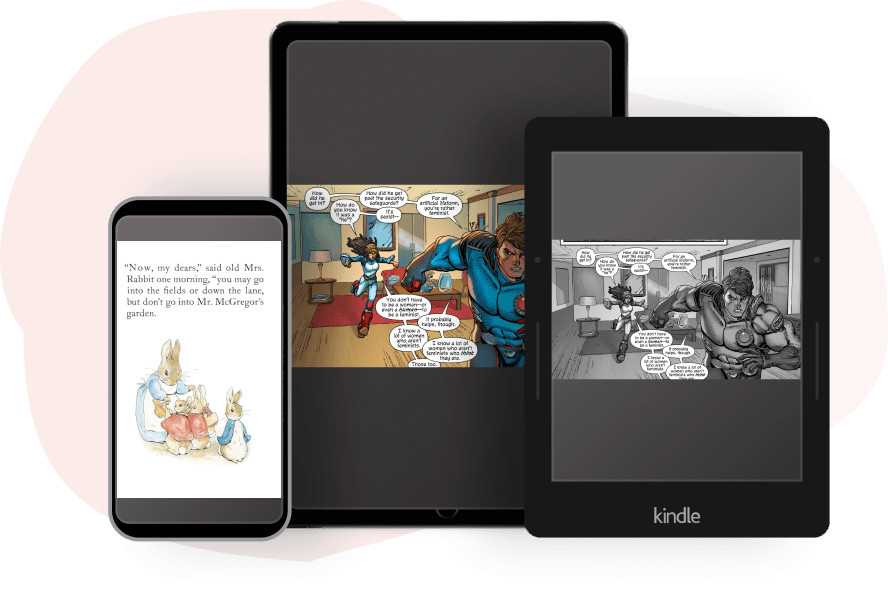
Ever since Amazon released the 5.19.2 software update for Kindles, there have been numerous reports of sideloaded manga and comics not displaying correctly, with extra blank space getting added to the borders, among other problems.
Who knows if Amazon will ever fix it or if that’s just how things are going to be from now on, but there is a workaround to fix the problem on your own if you don’t mind converting your comics to a different format, and you’ll get access to some bonus features as well.
I came across this guide on reddit with directions on how to use Kindle Create and Calibre with the KFX Output plugin to convert manga and comic files to KFX format.
The more common method of using KCC (Kindle Comic Converter) to convert mangas and comics relies on the older outdated Kindle formats (AZW/MOBI) instead of the newer KFX format. KFX adds some extra features, the same as purchased comics from Amazon, and it doesn’t show the extra white borders.
You’ll need to download three software programs and one plugin to your computer to convert your files:
Kindle Create
Kindle Previewer 3
Calibre
KFX Output Plugin (downloadable from Calibre’s plugin menu)
Once you get the software setup, you basically just have to import your PDF or image files into Kindle Create, configure some settings, export the file in KPF format, and then use Calibre and the KFX Output plugin to convert that into KFX format.
As someone who doesn’t sideload manga files on Kindles, I haven’t tested this method myself, but the directions seem pretty easy to follow. I don’t want to copy and paste everything here so make sure to hit that link to read the directions from the original source.
Leave a Reply