
Ever since the 5.18.6 software update from last November, Kindles no longer have the option to open the full dictionary as a book when looking up words like they’ve been able to do for as long as I can remember.
You can still lookup words while reading, but the dictionary feature is now limited to a little box. The option to open the full dictionary no longer exists so you can’t control the font size. You can’t quickly lookup similar words. You can’t bookmark pages in the dictionary. It’s a big downgrade from how the dictionary feature used to work on Kindles.
I found a way to open the full dictionary on Kindles with newer software to get all those features back, but it isn’t convenient and it requires several additional steps than just tapping the Open Dictionary button that used to be available on the old interface.
How to Open Full Dictionary on Kindles Post Update
From the Library or Home on your Kindle, use the search bar to search for “Dictionary”.
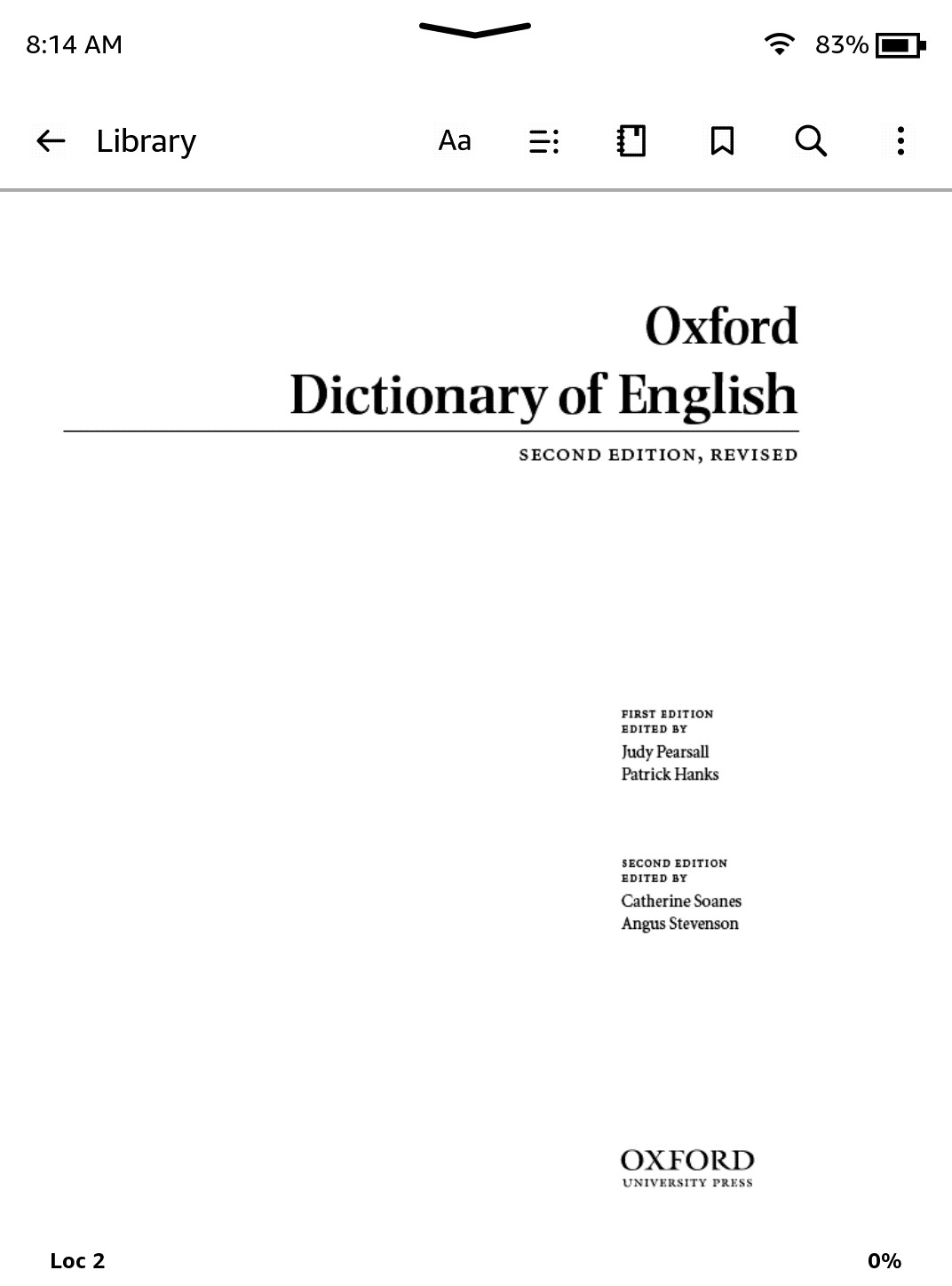
You can then select to open dictionaries from there, such as the included Oxford Dictionary of English.
Another way to open dictionaries is to scroll all the way to the bottom of the list of books from the library view; a collection of Kindle dictionaries always appear at the very bottom (it helps to sort by downloaded since there are dozens of them).
When you open a dictionary from search or the dictionaries collection it will open as a full book like before. You can change the font size, add bookmarks, you can even add highlights and notes, but you’ll have to manually search for words to look them up.
Open Dictionary Option Returns!
The weird thing about this is when you select words in the actual dictionary, it uses the old interface and the option to open the dictionary is there again, proving the functionality still exists with newer software. But they stupidly disabled it from the new dictionary pop-up window.
You can jump around to different parts of the dictionary using the Open Dictionary option (when you select a word, hit the menu button on the far right and tap “Open Dictionary”). Then you can use the back button to go back to previous pages.
At least there’s still a way to access the full dictionary on Kindles, but the process is much less convenient than it was before. You can no longer open the dictionary from a book, and you have to search for it or scroll to the bottom of your library list every time because it will not appear at the top or as a recently opened book.
I can’t believe it’s been almost 5 months since Amazon removed the option to open the full dictionary when looking up words on Kindles. I assumed it was just an oversight, and they would bring the option back with a future update, but they’ve released several updates since then and that still hasn’t happened. I don’t why they can’t just add the option to “Search Dictionary” from the search tab that shows up when opening the new dictionary window.
If you miss being able to easily open the dictionary on your Kindle when looking up words, send feedback to Amazon about it. If enough people complain about the missing feature maybe they’ll bring it back. That has worked in the past when they removed the indicators from the library view list that shows an estimate of how long books are compared to each other.
Wow. My Kindle 42 dictionaries. Hmm, something about that number 42.
I created a collections folder called “Dictionary 2” and was able to copy the dictionaries I wanted into it. It makes accessing slightly quicker. Thanks for the idea.