
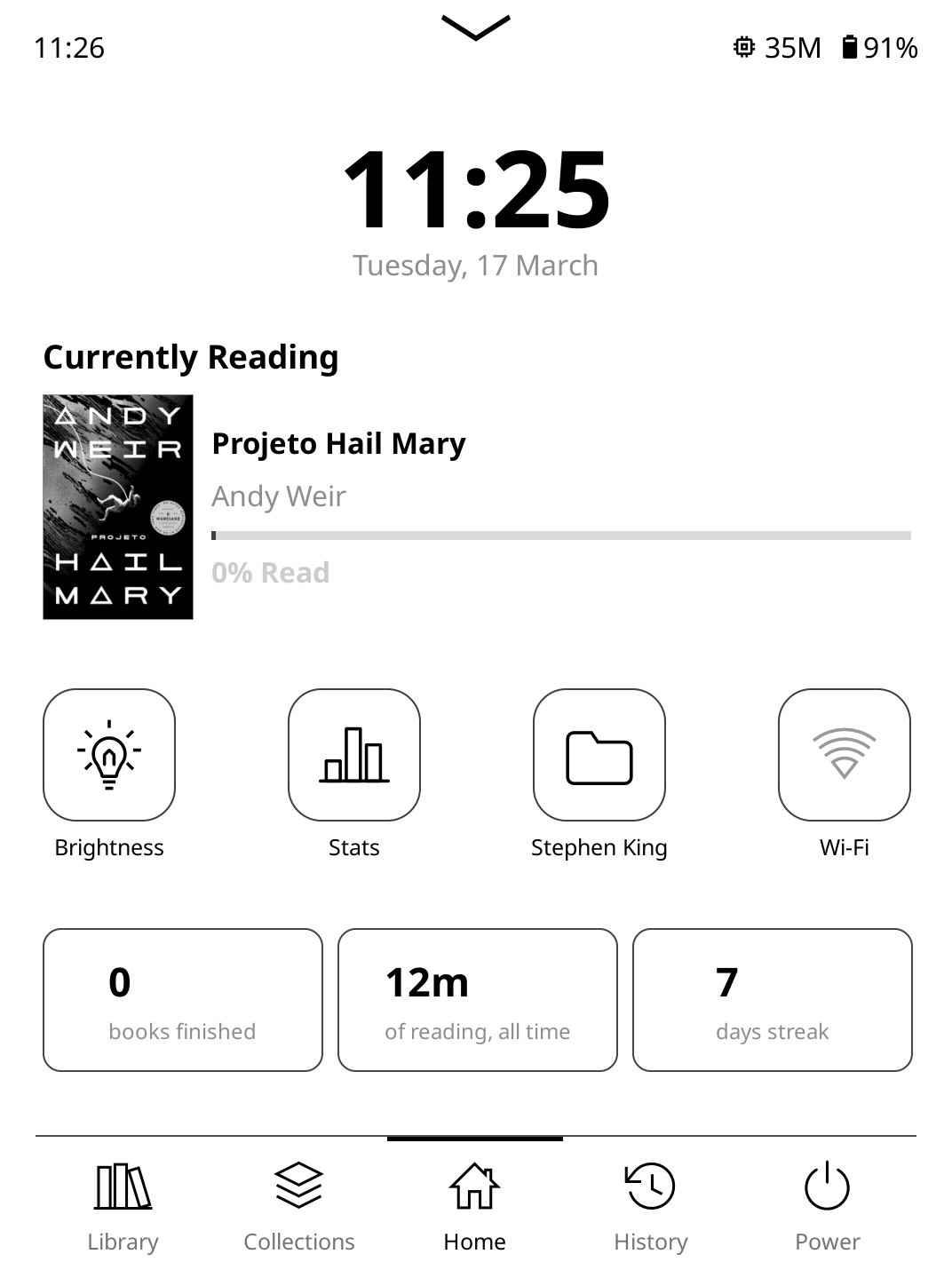
Last week I posted a video showing how to jailbreak Kindles and install KOReader using the new Vera jailbreak, and so far I’m liking it a lot, but the Kindle’s annoying screensaver ads made me not want to use the device, and KOReader’s default homescreen and library view is pretty inelegant.
The first thing I wanted to do was figure out how to get rid of the hideous screensaver ads. I know it’s silly, but the ads are the thing I hate most about Kindles, having to see them every single time you turn on your Kindle, and having to swipe the screen to get past them is the worst. Actually, the swiping requirement disappeared after jailbreaking, but I still hated seeing the same ugly ad over and over again, and I’ve already paid Amazon like 5 times to remove ads on previous Kindles and I’m not doing it again.
Anyway, getting rid of the screensaver ad is really easy on jailbroken Kindles. This is what you do:
How to Disable Ads on Jailbroken Kindles
1. Download the Disable Ads scriplet.
2. If your Kindle is running KOReader, exit KOReader to go to the main Kindle interface (or your computer won’t detect your Kindle as a USB drive).
3. Put the downloaded disable_ads.sh file in the documents folder on your Kindle.
4. Disconnect your Kindle from the computer, go to the library, and click the Disable Ads file. Your Kindle will reboot and then it should be ad-free. You can delete that file after it’s finished.
After that’s done, you can enable the option to show book covers from the stock user interface if you want to (by default it will show random screensaver images). Go to Settings > Screen and brightness > Show covers on lock screen.
You can also set KOReader to show book covers on the sleep screen, or use custom images instead. In KOReader, hit the gear settings icon, then go to Screen > Sleep screen > Wallpaper to set it up. You can also edit the message that appears on the sleep screen.
How to Install Simple UI on Jailbroken Kindles
1. Download the Simple UI plugin from GitHub, and extract the zip file.
2. Again, if your Kindle is running KOReader, exit it so your computer will detect your Kindle when you plug it in with the USB cable.
3. Put the simpleui.koplugin folder inside the “plugins” folder on your Kindle that’s located inside the koreader folder on your Kindle’s drive.
The next time you launch KOReader on your Kindle you’ll be asked to configure the plugin to your liking. See the Simple UI GitHub page for directions and explanations on how everything works.
Hi Nathan, you should ptobably say to download the scriptlet from scriptlets.notmarek.com, your readers will have no idea where to get it from.
That’s what the hyperlink is for…
I haven’t tried Simple UI but I installed Zen UI before you made this post and I quite like it.
I like this Simple UI. I had just jailbroke my Oasis last week and disabled updates.
I’ve followed the steps but I still see Goodread ads on my lock screen. Also no option to show covers on lock screen in settings.
Did you try running it again? The ads came back on mine for some reason, but I ran the file again and now they’re gone again.
1. how do you first jailbreak the Kindle Paperwhite 12 gen.
2. also how do you get all the widgets and cool stuff.
3. are you still able to read all the books that you had on there
4. please tell me how to jailbreak 12 gen Paperwhite on my kindle the easiest way.
SpiderCat is the easiest way to jailbreak if your Kindle isn’t on the latest software version. If it is on 5.19.6 you can use Vera, and it’s really easy too and I posted a video guide walking through the process. Installing plugins is described above. Yes, you can still read your Kindle ebooks normally using the stock software (everything remains the same), but you have to remove the DRM from them if you want to be able to read them using KOReader.