
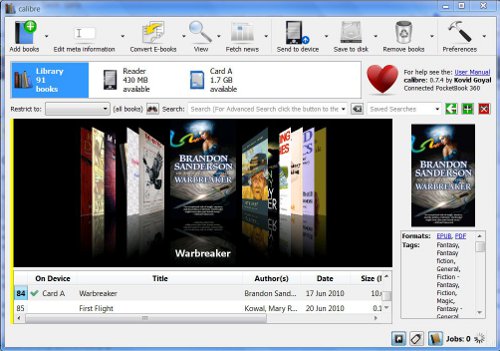
Calibre Overview
If you haven’t yet started using Calibre (pronounced Caliber) for managing your ebook collection, now is a good time to learn how to get started. Calibre is undisputedly the best ebook managing tool on the planet. And the best part is, it’s free.
Calibre can do everything from displaying ebooks in its ebook viewer to converting formats into something more compatible for a specific ereader. With it you can organize your entire ebook library any way that you choose, and sync all your content with your favorite reading devices. You can easily edit all your ebooks’ metadata and descriptions. And Calibre can even search the internet and download metadata and book covers at the click of a button.
Additionally, you can set up Calibre to fetch RSS news feeds from around the web and automatically convert them into an ebook to be sent to your device, no subscription fee required. The news feeds are setup for many of the popular news sources like Newsweek, The Wall Street Journal, BBC news, and 100’s of others—or you can create a new recipe to collect an RSS news feed that’s currently not supported.
4 Quick Steps to Getting Started with Calibre
1. Install Calibre: To get started, download Calibre from http://calibre-ebook.com/download. It’s available for Windows, OS X (Mac), and Linux.
Once you install Calibre, the welcome wizard will guide you through the installation process. First you’ll be asked where you want Calibre to save your files. Calibre will copy all your ebooks into a hierarchical file system.
Next, you’ll be asked to choose your specific type of ebook reader so that Calibre can determine the optimum format to output when converting files. You can change this later so don’t worry if you don’t have an ereader yet.
2. Adding eBooks and News Feeds: If you already have some ebooks on your hard drive, loading them into Calibre is as easy as clicking on the “Add Books” button in the upper left corner of the program’s home menu. Select the folder with your ebooks in it and then Calibre will import the entire folder at once, or you can just choose individual titles.
If you don’t have any ebooks, what are you waiting for? You can find millions of freebies by checking out the websites listed on our free ebooks page, or you can find the latest free titles in the free ebooks category of this blog. If you are looking to buy ebooks, here’s a list of the most prominent ebook stores.
To add RSS news feeds to your Calibre library, simply click on the “Fetch News” button. This brings up a list of all the currently supported news sources. Select the feed you want and then you can choose to download it once or setup a schedule to automatically download it each morning or whenever you specify.
Calibre collects the articles and then converts them into ebooks that includes the full versions of the articles, along with the associated images.
3. Editing Metadata: This step is optional but makes sorting and organizing your ebooks a lot easier in the long run. You can enter metadata—author names, book titles, tags, book description, etc—manually yourself or you can have Calibre search for them online, along with the book covers, to automatically fill in any missing information.
4. Transferring eBooks to a Reader: You can read your DRM-free ebooks using the Calibre ebook viewer on your computer, or you can send them to your favorite reading device as easily as clicking on the “Send to Device” button. Calibre will automatically detect your device when you plug it in to the USB port of your computer.
If the ebook you are sending to the device is not a supported format, Calibre will convert it to the most suitable format for your reader automatically.
Also, with the Calibre content server you can access your ebook collection using a web browser from any computer anywhere in the world, and you can set it up to email your ebooks and downloaded news automatically.
Calibre Video Tutorial
In the video below the creator of Calibre, Dr. Kovid Goyal, gives a tutorial on how to setup Calibre, add ebooks, edit ebook meta data, how to convert and send ebooks to a device, and how to fetch news feeds, among other helpful tips and tricks.
Check this new post for an article and video with some advanced tips and tricks for using Calibre ».
Hi, Just found your site and have to congratulate you on it. It’s clean, timely and seems to be quite complete. I write to ask a question and a favor. Question: How often are the comparison charts updated? Favor: Please tell me your name and I’ll give you and your blog a plug and a link in the ebook about ebooks I’m just about to publish.
Thanks and regards,
Mike Booth
P.S. That website listed above is brand new. I have other (like http://www.worldprintmakers.com) but they’re about fine-art printmaking.
Hi Mike,
Thanks for the plug, and the name’s Nathan btw. The comparison tables get updated every few weeks or so, mostly when a new device hits the market or one of the older ones gets updated. I usually don’t mess with updating the minor details like the estimated prices very often because they are always fluctuating.
A lot of new devices are coming onto the market so it’ll be getting quite a few updates soon. It looks like I need to add the new Cruz Reader now that it’s up for pre-order.
Will Calibre allow you to organize notes and annotations and email or print them? If so, can you organize them across books? For instance, if I was doing research and wanted to collect all my notes from multiple sources in one place would this reader let me do this? If not, do you know a tool/app that does?
Thanks
Hi Rob,
I don’t think so. It depends on what device you use for annotations and such. With the Sony ereaders you have to use the Reader Library to export notes because they are in some weird format. With the Kindle they are all saved in a TXT file that is easier to manage and export (this puts all your notes into the same place). As far as I know Calibre doesn’t really deal with annotations. Of course it is a very versatile program and I could be wrong. You might try doing a quick search of the Calibre manual.
Hi Nathan,
If one has two different ebook devices (say a nook and a kindle) is it be possible to use both with the same installation of the Calibre?
thanks, mike
Yes. Calibre will detect which it is.
How do u know if a e reader is DRM FREE? I have HUNDREDS of e books on my PC and can convert them into pretty much any file type but am scared I wont be able to read them not he e book reader. Iam looking at Pandigital Novel Multimedia now.
Can I read DRM FREE books on that? Which e readers accept DRM FREE books off ones computer?
All ereaders support DRM free ebooks for certain formats. The Pandigital supports EPUB and PDF and probably TXT. There are others that support a lot more formats but if you can convert them to EPUB, MOBI, or TXT then you’re covered for pretty much any ereader.
I have just acquired a Sony PRS-900 eReader and confused after reading this article. As I read through the device instructions, I have to install the Sony Reader Library in order to be able to buy books from the Sony Store through the computer. I presume that Calibre doesn’t let me do that. So the question is: if I install the Sony Reader Library on my computer (an iMac), can I install Calibre as well to manage my library or must I uninstall the Sony software? Please bear in mind that I am new to the eReader world and thus my confusion. Thanks for your help.
Yes you can use the Sony software and Calibre software at the same time. You just need to use the Sony software to buy ebooks from Sony, but you can also buy them directly with the 900 so you don’t have to use Sony’s software unless you want to read them on your computer. Calibre can even manage the books you buy from Sony, it just can’t access their ebook store or read them since they have DRM.
One final question: So, if I only install Calibre and buy my books through the Sony PRS-900, I can manage all my books with Calibre, including those that I have bought from the Sony Store. Does that include transferring all books to the computer for storage in one of my hard disks instead of keeping them in the 900, and transferring back those I choose to read on the 900 back to the 900? (Yes I am almost totally ignorant on ebook reader processes, although not on computers).
I never tried it that way myself but I don’t see any reason why it wouldn’t work the way you describe.
fetchnews download deleted from the PC but not from the Nook Color — plz help me
Not sure what you mean. The Calibre forum might be of help: http://www.mobileread.com/forums/forumdisplay.php?f=166
Ok. I installed Calibre today and it is a GREAT software. Highly intuitive, the user interface is excellent. I have not tried using the PRS-900 yet, but will do tomorrow and will keep you posted. Thanks for this recommendation and for your help.
hey,
i’ve been using by Sony PSP to read ebooks on but have decided i’d quite like a Kindle.
Can i convert non DRM .lit and .pdf files to use on a Kindle. I read with interest your item on Calibre and think that this is probably the software for me. Is this correct? also can somebody tell me if Amazon convert non DRM .lit & .PDF files for use on Kindle, and how long this service takes?
Thanks
The Kindle does support PDF files but not LIT. You can convert those with Calibre. Amazon doesn’t convert LIT files.
thanks, so i have to covert both PDF & Lit files to the Kindle format using Calibre yes?
thanks for your reply
Just LIT. It supports PDF natively. You can convert the PDFs if you want. Text based do okay, but if there’s tables and graphs conversion is not pretty.
How do you download books from other sites to Calibre? Sites other than your ereader brand?
Have a Literati and have been told to use Calibre for such task than getting books from Kobo.
How can I stop a Claibre newspaper subscription so that I don’t get charged any longer by Amazon?
Not following your question. Why and how could Amazon charge for a Calibre subscription?
Ok so I am new at this. Question what do you do in the wizard setup if your manufacture is not listed (Cruz reader,Velocity).
Thanks
Just skip it; you can go to preferences to change it later.
You mentioned that you can skip the choosing of your reader during the wizard and then later go into preferences to designate the velocity cruz tablet. I guess I’m so frustrated that i’m not getting how to do this. can you walk me thru it please?
It isn’t in preferences, exactly, it’s below it on the little icon furthest to the right. I’m not sure if the Cruz will be listed. This is mostly for determining the output format. When converting ebooks you can set the output format in the upper right to whatever you want.
You say
“If you already have some ebooks on your hard drive, loading them into Calibre is as easy as clicking on the “Add Books” button in the upper left corner of the program’s home menu. Select the folder with your ebooks in it and then Calibre will import the entire folder at once, or you can just choose individual titles”
What if I already have 300 GIGabytes of books on my hard drives – organized the way I need them and which would take months to recreate?
Is there a way to have e-books from my Amazon account copied or moved to my Calibre?
Sure. If you have them downloaded to your computer you can import the folder into Calibre.
The books are on my Amazon account web page and in my Kindle. Is there a way from me to download them to my computer?
There’s probably more than one way to do it, but I use Kindle for PC to download them to my computer.
Hi Nathan, I am about to purchase an ebook, and a the moment I am leaning towards the Kindle. Can your software convert ePub loan books from a library to work on the Kindle or will there be some sort of copyright protection which will prevent the conversion?
Many thanks
The Kindle is a no go on library ebooks; copy protections strikes again.
I use Calibre with my Kindle 3 and it works very well. One of the significant challenges was synchronizing collections which was solved by a plug-in which you can read about at [http://www.mobileread.com/forums/showthread.php?t=118635].
Hi- I have a PDF of a book I wrote (with cover) and I’d like to convert it to a form that I can then sell as a Kindle ebook on Amazon. Is this possible or is Calibre just the other way to convert to a format to read on your own ereader?
Thanks- Just found your software and am very intigued!
Candace
Candace
Calibre is an excellent ebook library manager. It will also convert almost any format to another. It will convert your PDF to a mobi which is the basis of the kindle format. Ther; is another piece of freeware SIGIL which is a wysiwyg ebook editor that you can use to clean up the converted product. This would require a conversion first to epub to do the editing and then from epub to mobi in calibre.
ERROR: Conversion Error: Could not convert: Convert book 1 of 1 (Liar’s Poker)It is a DRMed book. You must first remove the DRM using third party tools.
What is this
It means DRM strikes again. You can’t convert books with DRM; you have to strip the DRM first.
Hi, I have Calibre on my pc and a kindle. I download a daily paper via calibre each day and then transfer it to my kindle by usb cable. I have tried to set up the internet sharing option on calibre and then setup the kindle to allow direct wifi of the download each day to my kindle but without success. I know have an android phone and the calibre email of the paper goes to that each day. How could I transfer this email on my android to my kindle to make it easier to read?
hi
I have managed to log onto my webserver through my kindle and find the emailed version of the newspaper sent to my mailbox via calibre. Cannot find a way to open the attachment and read it on the kindle. When I try to open it it transfers it to the home screen but only as the title of the email. Any ideas on how to open the attachment and read it on the kindle?
It’s been a long time since I worked with Calibre’s content server. The best place for info on it would be the Calibre forum at MobileRead.
Hi Nathan,
Do you know if Calibre will work on new Nook touch. I just wanna don’t get into whole DRM prohibition thing. I extensively studied your reviews (written and video) and decided to go with Nook over Sony 350 mainly coz of 6 inch screen. What do you recommend b/w these two? I don’t care about WiFi. Thanks
ps: you blog is freakin amazing.
Yep. Calibre works with pretty much anything that can display ebooks.
I’ve downloaded Calibre twice and both times my Windows XP-Pro can not open the file. Evidently it does not recognize an msi file. Does anyone have any suggestions? I would appreciate any help anyone can offer. Thanks
Donna, take a look at http://forums.techarena.in/windows-xp-support/915067.htm and see if that’s any help. It sounds like your installer isn’t working correctly.
I use Calibre with my Literati (program thinks it’s a BOOX) and it’s great.
As for DRM – think of DRM like a license (which is exactly what it is). If you have a file that you purchased that is under copyright, you probably will not be able to convert it to any other format. It’s like an iTunes .m4a file that can’t be converted to .mp3, or a protected PDF file that you got from the eBook section of your library that has a weird .asx file attached. Check out the wiki on DRM: http://en.wikipedia.org/wiki/Digital_rights_management
Hi, I ‘m about to download Calibre, quick question, if I have e-books on different languages, will Calibre work on them?
For example I have FB2 e-books in Russian and want to get them into Kindle?
I have retrieved two news items. Economist, and US news and world report. I have he output set at epub, so I assume the down load to my android tablet will be goin in as an epub file. However when I go into the tablet to retrieve the news item, I can find it on the SD card/ebooks/import/news, and both of the files are there, but they are a strange .etc file, which my android does not support. Am I doing something wrong? Why is it in an .etc format? How do I transfer to the android without this hassel.
When I convert my EPUB with command prompt to a modi file through Kinglegen my figures are text wrap around images. Which is what I want. But when I use calibre to convert the same modi file it does not wrap text. I have witten code in the CSS of the EPUB to float and wrap. Calibre is ignoring it.
Hi Nathan
I have a generic eBook readr (detets in Calibre as Sovos) and seems to work fine.
Have 2 issues :
1) have set preferences in Calibre to auto-add books from folder- doesn’t seem to work and I can’t work out how to
determine if the job is running or not
2) I’ve had some issues with files loading into Calibre and then findign that they are corrupted when I try to open in my reader or even the viewer in Calibre – is there a way to check the integrity of the files after import
I’m usually prety good with software, and have hit to Calibre forum but ………….. these 2 items have stumped me.
Thanks in advance for any advice/assistance.
Rgds
Ron
I’m not really an expert when it comes to all the things Calibre can do so I’m afraid I’m not going to be much help either.
Hi Nathan….I’m in NZ and have a Sony T1 ereader, can I order an ebook from amazon and have then convert it? Thanks
No they aren’t compatible unless you first strip the DRM yourself and then convert it.
hey nathan, i don’t know if you are still keeping up with this but i use a psp to read ebooks and i was wondering if calibre is able to convert files to the psp screen size because i cannot figure out how to do it myself.
I don’t have a PSP so can’t offer much advice in that regard, but I did find this post at MobileRead that may be of some help.
Hi, I installed calibre in linux redhat server and convert to calibre use command line. I want view the read/view epub books using web browser. How we can implement? Not a windows server. I am expecting in through browser to read/view? please adivce me. thanks.
That’s out of my wheelhouse. You’d get some better answers in the Calibre help thread at Mobileread.
Nathan, nice blog
but i have one question, how can i create library without copying books into it, just the metadeta?
I don’t know. I’d hit the Calibre help thread for that one.
I enjoy Calibre very much and use it often. It is installed on my desktop. I would like to install only the ebook viewer on two laptops with the entire Calibre program. Can this be done?
Sorry, I meant to say install the viewer WITHOUT the entire Calibre program.
Afraid not. It’s not broken down that way. The viewer relies on other components of Calibre and can’t be installed separately, unless they’ve recently changed it.