
A new tool called NookManager recently became available for rooting the Nook Touch and Nook Glow. It also includes ways to create backups and it can restore your Nook to factory settings, as well as disable B&N apps and install custom plugins.
I haven’t tried NookManager myself because quite frankly both my Nook Touch and Nook Glow are already backed up and rooted using the older methods, but I’ve heard good things about NookManager. It’s nice how everything is consolidated into one single utility, and it reportedly works with the latest 1.2.1 firmware updates.
If you want to try out this tool, head over to this NookManager thread at XDA for the directions and download.
Basically it sounds like all you have to do is download the file and then unzip it onto your computer. You then have to write the NookManager.img file onto a blank microSD card. The directions at XDA suggest using “disk imager” to write the image when using a Windows computer, but I’ve always used WinImage instead.
With WinImage all you have to do to write an image to a microSD card is connect the card to your computer with a card reader and then open WinImage as Administrator. Then go to Disk, and choose to “Restore Virtual Hard Disk on Physical Drive” and select the microSD card and then the NookManager.img file.
Once that’s done all you’ll need to do is shut down your Nook Touch and then insert that microSD card, power on, and then follow the onscreen directions. Note that there’s a Google apps package available for download over at the bottom of that post at XDA as well.
If anyone is brave enough to try this out let us know what you think. And if you’ve used the older backup and rooting packages let us know which method you like best.
I have updated my Nook Touch to 1.2.1 and then rooted with Nook Manager. It is a great tool and much more user friendly than all of the other rooting methods I have used in the past. I did not try the backup functionality because I did not have a big enough SD card to hold the backup. (I backed up my Nook using the noogie method.) I performed the rooting procedure without enabling the ADB over Wifi with no problems.
Anyone who is not tech savy that wants to see what all the fuss is over rooting should give Nook Manager a try.
Nook Manager does not provide access to Google apps by default, but there is a Google Apps Installer add on available at XDA (http://forum.xda-developers.com/showthread.php?t=2086582).
Cool, thanks for letting us know. Sounds like NookManager is the way to go.
which version of winimage should I use? There are several
listed. My pc is windows7 64bit, if that is relevant
My biggest issue with rooting my Nook Touch is that the Android on it is so old, I can’t install my favorite e-reader, Moon+, which has position syncing.
There is a app called “Page Turner” that can sync your progress with just an email address. It doesn’t need the emails password from what I can tell. But a fairly attractive app.
It can be found in the F-Droid apps store. the apps store can be found here: http://f-droid.org/
Or you can just go download Page turner straight from F-Droid’s site here (APK is at bottom) : http://f-droid.org/repository/browse/?fdfilter=Page&fdid=net.nightwhistler.pageturner
Hope that helps. God Bless you
you really can’t install moon+ on this? that’s the program i use on my kindle fire.
Is there any other program that can make highlights and upload them to dropbox or evernote or email. Moon+ was able to do this with pdfs and that was awesome, but i’ll take epubs only.
You need to get an earlier version of Moon+ and directly install the apk file. I don’t know which version off the top of my head, but there is a thread on CAB forums about it with a link to the older version which is compatible (there is a minor bug with the bottom line getting cut off occasionally though)
Let me know if you get stuck and I’ll post a link to download to apk file if you need.
CAB = XDA. Stupid auto-correct.
I can’t find the link to the moon+ reader .apk on the XDA forums. Would you mind posting the link?
A nice feature of the NookManager is that it appears to have a faster refresh mode built in, rather than the older rooting method which required a side loaded app (which I’ll confess I was never able to make work).
I’m happy this new method became available. I love the comfort of reading with my Nook, but was frustrated it poorly rendered standard pdf documents. This thankfully allows me to install other reading apps, which do a much better job. It’s sad B&N doesn’t include a better universal reader.
Which program do you recommend for reading PDFs?
So far, I’ve found PDF to be very clumsy on my Nook Simple Touch and was thinking that I might have to go to a 10″ tablet to read them properly.
As mentioned a little earlier ezPDF is works pretty well, but it’s still not going to be anything compared to a 10″ tablet when it comes to PDFs.
I also considering upgrading to a tablet, but NookManager seems to do the trick just fine for reading. I like ezPDF as well, but for whatever reason the bookmarks don’t display properly with PDF documents, which is a problem for large books. Therefore I generally only use it now for reading research articles. The bookmark feature in the reading app, Documents to Go works as it should, which also a good PDF reader.
I had previously rooted my Nook Simple Touch using the TouchNooter. This worked but reversed the 1.1.11 update back to 1.1.10 and never permitted the Nook to update, even if I side-loaded the update (1.2.1). So when I read about this NookManager, I decided to give it a try.
I restored my NST back to factory default by pressing the two lower buttons simultaneously as the Nook booted. I updated to firmware 1.2.1 by sideloading and then followed the NookManager procedure.
It worked very well, as advertised, and I’m more pleased with the new interface and features. Simple and easy, I can recommend NookManager to those who have been reluctant to root their Nook.
One of the first apps I installed was Cool Reader, my favourite reading progam. This version (3.1.2-33) incorporates the Nook-specific and eInk refreshing features in the mainline version from the Nook version of Cool Reader that Nathan previously wrote about: http://blog.the-ebook-reader.com/2011/09/21/cool-reader-app-for-nook-touch-has-partial-refresh-and-page-button-support-video/
This looks great! I’m SOO trying it out. more later, Gabe
I, like Rob, previously rooted my NST Glow with GlowNooter… didn’t like it that much. However, I already checked out the user interface and it looks awesome… so I’ll tell how my progress is later and by the way THANKS to whoever developed this tool! It’s gonna be great!
Works great! Thx for the post, Nathan! 🙂
I have used ‘Orion Viewer’ to read PDF files on the Nook Touch for a while and I’m quite satisfied with it.
After reading your article, I unrooted my device and tried this one. Work great! Thanks Nathan.
Having waded through a large number of XDA posts, your How to pages are very reassuring .
Bit confused as to whether the UK version of the Touch Glow 1.2 is different from US versions and whether this means much of what is on XDA is not relevant ?
That shouldn’t make a difference, but then again I don’t know for sure. As long as you make a backup first you’ve got nothing to worry about.
Hello, i want your help please with my nook glowlight, i want to add the multitouch and fastmood to my device but i didnt find something that is easy like CWM mood that can be applied with glowlight like nook simple touch. I found a thread that says by using adb but im not experienced with such app so please provide me with the easiest way.
thanks in advance waiting for your help.
Sorry but I’m not going to be able to help you much in this regard. I only ever used ADB once a few years ago with the Nook Color. I always had trouble getting my devices to be recognized properly by ADB so I stopped trying to use it. I would suggest posting your question at XDA where maybe someone knows more will be able to help.
thank you Nathan for your reply. just now i got the help by doing CWM mood, but the problem is with the contrast i dont know how to do it.
Dear Nathan,
Thanks for a fantastic blog/site. I have used your site for questions and updating. With regard To the free app from BN, I tried to download it to my iPad and while it said that I had done so, I could not locate it.
Is it only for Nook ?
Thanks for your help
After rooting a Nook with Nookmanager, has anyone figured out how to get access again to the the original B&B Nook Reader program? The task manager shows that it’s running but there’s no launch icon for it on the Apps screen nor is it a choice for a file association app. As good as Cool Reader is, it’s not perfect and there are times I miss the original factory reader.
I did reboot into the Nookmanager and checked that I hadn’t disabled the B&N apps. They were enabled. But I don’t know how to access the Reader.
Doesn’t pressing the “n” button bring up the regular Nook options? That’s how it works with GlowNooter. There’s an app icon titled Library to get to the Nook sections as well.
Yes, but selecting a book from there still opens Cool Reader. I do not ever see an option for Reader.
Cool Reader must have got set as the default app for ePub’s. I don’t know if there’s a way to change that since the Nook doesn’t have a regular settings menu. In the past I accidentally set the Android homescreen as the default and there was no way to undo it except for starting back over from scratch. You might try uninstalling Cool Reader because then it will reset the default option but if it’s a system app it might not uninstall.
Hey Rob!
Just go to NookColor Tools (install from xda if you don’t have it), tap “All Settings”, tap Manage Applications, tap Cool Reader from list, and tap “Clear Defaults”. Then open an ePub and click Reader, and not Cool Reader. But be sure not to check the “default” box when prompted! 😉
You’re right. I was thinking it didn’t have the clear defaults option with the weird settings menu, but it does. That should definitely fix the issue.
I lost the long press n button to change screen orientation following rerooting. I seem to have a tendency to lose the ADW Launcher option, causing me having to reroot. My thought on the new nook Manager? It might be faster, easier to root but there is no proper launcher. Also trying to install the google package is not straightforward, I’m wondering why it’s not kept in one place in the first place. I can’t say it’s an improvement from touchnooter.
how to change the default fonts in the latest 1.2.1 firmware? every time I try to replace the default fonts(like GillSans.ttf, HelveticaNeue.ttf) my NST just stops working and won’t start up either…I need to restore backup then.
Is there a way to replace font files without turning on the reader? like modifying the backup files or make changes to the NookManager Image? The img file can be accessed with WinImage software
The nook needs those font files. Or more precisely, it needs font files with those names. So if you have rooted your device, you can link to or copy over those file names with other fonts. On my nook, I deleted the Malabar font files and linked the font file names to the Amasis30 font files. Now the Amasis font is the default font on my Nook.
I just used NookManager to root my NST and install the Google Apps package. Things seem a little buggy, but can’t say what’s causing the issues.
Response to button touches in ReLaunch is often very slow; sometimes I have to touch more than once to get any response. The ReLaunch interface makes me think of an old Hypercard stack, not a modern Android interface. There must be a way to load a different launcher…
When I look at My Apps in the Market, I am unable to scroll through the list; all I can see is the first page. However, when I have a multiscreen list of apps in response to a search (with SearchMarket; using the in-Market search function doesn’t work, as mentioned by the dev of the Google Apps installer), I have no trouble scrolling either by swiping onscreen or using the uppper/lower buttons on the left side.
GMail doesn’t want to sync (not that I especially care; I don’t plan on doing e-mail on my Nook).
The file manager keeps looking for an SD card (I don’t have a spare right now, because I used it to install NookManager and make a back-up of the original system) and doesn’t want to look at the internal storage.
Ditto CoolReader, which also won’t open the Nook files already downloaded if I select it as the reader when I select a book in the library (a DRM issue?). (The stock reader works fine.)
I can’t install FBReader because the install process is looking for an SD card.
The Kindle app installed fine. The interface isn’t quite the same as on my Samsung devices, but it works. I was able to download and open several Kindle books. Can’t figure out how to change fonts, though.
THat’s it so far, after an hour of playing around with it.
How can I read Books in Landscape After Rooting please ?
You have to use an app with a manual rotation option, then it will stay in landscape until you switch it back. Some of the reading apps have that option in settings; most have it set to auto by default, which won’t work since the Nook doesn’t have a sensor.
I have had good success following the steps here: http://geekanddummy.com/how-to-rooting-the-nook-simple-touch/ Lots of pictures to make it easy! They recommend a load of apps for reading PDFs and stuff like that.
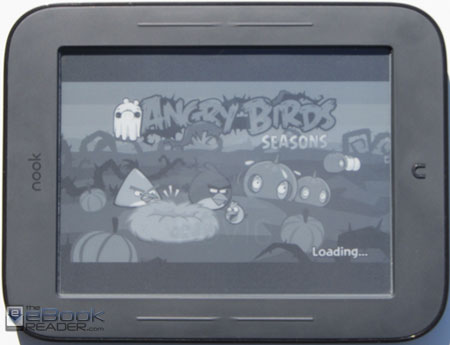
I wouldn’t bother playing Angry Birds on it though – painful!
Thanks for the link, the nookmanager works perfectly. I do have a question though, can i reuse the microSD drive that has the nookmanager installed? I used a 16gb SD card and don’t want it going to waste.
Yeah, just re-format it when your done hacking.
Actually, it is recommended that you use the card to keep the backup of your original image on the card in case something dire happens you can return it to stock condition-that is why it is recommended that you use a 4gb card because it is meant to keep your backup.
Thanks for clarifying. I always used Touchnooter or Glownooter and saved backups on my computers hard drive, so it was a bit different.
I don’t necessarily want to root my NST, but I do want to free up the B&N partition for sideloaded content. Is there a simple easy way to do this? TIA.
Hey guys, it’s me again.
I have a question and a statement. Number one, I tried GlowNooter and NookManager, but I unrooted both times for a simple reason – rooting ate up my battery life so much that it wasn’t worth the extra features. So keep that in mind when/if you choose to root your Glow!
And now a question – is there any way possible at all to use the landscape screen orientation without rooting? If so, please tell me. That is the biggest feature I miss on my unrooted Glow.
Later,
Gabe
Rooting is the only way. The Nook is so comfortable to hold in landscape mode it’s a shame that B&N never bothered to take advantage of it.
Wow, thanks for the quick reply – I kind of thought this was dead! :/
But to get back on topic, you know the hidden browser in 1.2.1, right? (I am actually using it right now!) I heard on some forum that you can make a website that changes screen orientation and then visit it on the Nook’s hidden browser, and apparently it actually works! Do you know anything about that?
Thanks,
Gabe
No, I’ve never heard of that. But I’ll have to give it a try. I found some web code (6) that looks like it can make that happen.
Okay, sounds good. I am only 14, by the way, and although I’d love to work on this project myself, I really can’t, due to the fact that I’m in the middle of moving!
Thanks again for helping me out – maybe we can get it to work and you might even make a post about it! 🙂
Later,
Gabe
Another thing worth mentioning is that we need to get landscape mode to stick even when we go into another B&N app. I wonder if that’s possible.
Oh yeah, B&N’s Nook reading app and library automatically switch back to portrait don’t they? That isn’t going to work, then. I was thinking it switched to landscape like when using another app to switch, but that’s only with the Android side of things.
Well, I suppose the best answer to that question is “mostly”, due to the fact that every rotation switch app except one (hooray!) did not keep landscape mode when on a B&N app. So that’s out.
But on the other hand, if we/you could create a webpage that simply switches the screen to landscape AND has a simple link to the Google.com homepage, we could at least use the “browser” in landscape mode. What do you think about that?
Are ya there, Nathan?
No, not really :). I lost interest after the last revelation. It’s not worth the time to go through everything just for the web browser—it’s too wonky to begin with, never could stand using it.
Oh, okay. Well, here’s what I’m considering – re-root my Glow with NookManager again, grab Opera Mobile, NookColor Tools, NoRefresh and that great permanent-orientation switch app, and then uninstall almost everything else. That way, I won’t drain the battery much due to the fact that I have very few apps installed. Until I can get that done, the “stock” web browser is fine for me, since I know a few tricks about it (like the fact that it actually has a Copy/Cut/Paste function built in!).
Well, thanks for your help and conversation. Hope you have a good time till the next time we talk,
Gabe
Hello, I have a NSTG and don’t really care about rooting.. the only reason Im considering it is because I need to be able to export my annotations out of the Nook.
This is a question for the experts, do I need to root? or will it suffice to do a complete backup? I presume the annotations are saved when you do a complete backup? thanks.
Honestly I don’t think there is a way to export notes from a Nook, rooted or not. Maybe someone else knows how, but I’ve never heard of that being possible with any Nook.
Nathan, thank you for the input.. Oops.. if I cant get my notes out.. I don’t even see the point in owning one.. A big mistake from my part.. I guess that’s ONE of the reasons it is always on sale, it is severely limited… on purpose, by their makers.. Well, they got what they deserved, clients looking elsewhere to get something USEFUL.
Apparently I can install other reader apps in the nook? if this is correct, can I expect to be able to export my notes using such apps instead of the native reader on the nook?
I was completely unable to install anything on the.. f device.. I attempted adb, it cant install anything everything fails… without a way to export my notes, this has been the WORST thing I have bought in my life