
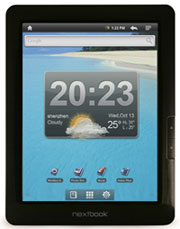
1. Hold power button for 3-5 seconds to Power On and for confirmation to Power Off.
2. Tap power button to put the Nextbook in Standby mode (drains battery some).
3. Long-press page-forward button to access Menu.
4. Long-press page-back button to go Home from anywhere.
5. Press Menu from the Homescreens to add widgets, folders, shortcuts, change wallpaper, etc.
6. The Next3 user manual and quick start guide are located in the reading app on the second page of books (use the page-turn buttons to cycle through the library; the small arrows are hard to hit).
7. Because of DRM, you must have an Adobe ID to purchase ebooks from Borders with the Nextbook. Make sure to read the user manual and quick start guide if you’re having trouble with this step. Basically, you need to have Adobe Digital Editions installed on your computer.
8. Delete ebooks from the built-in reading app and other apps – From the homescreen, open the app drawer (middle grid icon at the bottom of the screen) and tap “Explorer”. Navigate to SD card or internal memory to find the ebooks to delete, depending on where they are located. Long-press them to bring up options to delete.
9. Adjust volume – Go to the homescreen, hit settings (the icon in the lower right that looks like a wheel), then sound and display, then adjust media volume. Add a shortcut to Home by doing step #5.
10. Installing apps – With an SD memory card inserted, install apps by tapping the App Store icon in the app drawer. Better yet, visit Amazon to install the Amazon Appstore on the Nextbook. Here’s a guide for installing Android apps and some suggested started apps. You can install everything from games, calendars, other e-reading apps, media players, notepads, an app for library ebooks, etc.
11. Use Aldiko 2.0 instead of the built-in reading app for more customizing reading options for EPUB and PDF ebooks, including those with Adobe DRM like the ebooks from Borders. Aldiko is a much better all around app than the built-in reading app, except the page-turn buttons don’t work.
12. Kindle app – some folks are having trouble downloading their purchased ebooks using the Kindle android app on the Nextbook. If you try it a few times the book will usually work. Otherwise you’ll have to wait for the official Kindle Tablet app (this one is actually designed for phones).
13. Try different web browsers for a better browsing experience. I’d suggest trying Dolphin HD and Opera Mini, and Skyfire for watching web videos (check the app install page referenced above to find these).
14. Uninstall apps – Go to settings, applications, manage applications, and then tap the app for the option to uninstall.
15. Experiment with long-pressing – It’s not always obvious but Android uses long-presses a lot of the time for added interaction. Whether you’re using the web browser, an ebook program, or other app, holding down on an icon, link, or text often brings up more options.
16. Connect to a computer using the USB cable to add or delete files (ebooks, pictures, movies, etc) on the internal memory and on a SD card. The files and folders you create and add remain the same on the Nextbook and can be found by using the “Explorer” app.
17. Factory Reset – Before selling or returning your Nextbook, make sure to go into setting, then privacy to do a factory data reset to erase all your personal information and to reset the Nextbook back to its out-of-the-box state.
18. Reset – Hold down the power button for 15 seconds or jab a paperclip into the small reset hole located on the back of the device. This doesn’t erase personal information or the installed apps.
19. Turn WiFi off before putting the Next 3 into Standby mode. WiFi stays on while the device is asleep. Good for email notifications and such but not good on battery life.
20. Turn the device off instead of putting it into Standby to save on battery. Standby always drains more battery, especially if you leave it on overnight.
my screen comes on half of screen and the rest is blank.what going on with the screen
where can i take it to get it fixed?
my nextbook disconnects automatically from the wifi.
it only works for a couple of minutes
i have to reconnect manually.
what can I do?
thanks
I’d suggest contacting the manufacturer. If they can’t help you get it fixed, they are good about sending replacements if you have a faulty unit.
I have the Kobo eBooks application on my Next3. The app runs just fine but will not open any books. Message is “We couldn’t open this item. We’re working to fix the problem — please try later.” No help from E-Fun and no response to support request submitted to Kobo. Anyone help?
@Clint:
Which version of Kobo were you able to install? I downloaded the apk, and it went through the motions, but would not allow me to open it on my nextbook.
i have problems of too many patterns locked out , and it is requesting me to put a google account , i can’t log in my google account because my wifi is off , , , , ,
i can’t turn it on to change the pattern because it is already locked out ….
what can i do on this problem can you help me thanks .
Perhaps you can force it to re-install the original firmware. With some Android tablets you can by holding down the volume down or volume up button for several seconds at the same time you’re holding the power button to turn the device on. Sometimes a set number of failed boot attempts will do the trick too. Just turn it on and then hold the power button so it turns off before it can boot. Do that 8 times or so.
I know this sounds like a simply ignorant question, but anyway, I have too many browser tabs open and it will not let me close them. I have tried everything. What is the secret to closing tabs? Until I close some tabs I can’t go anywhere else with a pop up window. Thanks if you can help
You should just be able to restart the tablet and the browser will go back to normal. Going into settings and force closing the web browser app would work too.
I have a nextbook3 and when I purchased my book it says it sent it to my library, which it did, but it says waiting to download for 3 days now!! Any suggestions? I talked to Kobo support and she said she updated my library, but we were disconnected and nothing was resolved.
i’m having same problem with my nextbook 2 on digital editions shows all my books in library but when downloading the last books my device says please wait downloading books for hours
I have the Nextbook 3 – and pushing the pin hole in back does not reset the unit. I have tried it with it turned on and also turned off. How can I reset to factory settings?
My nextbook has a full charge but when I unlock the screen, it shuts down…. How do I fix this?
Other than shutting down the tablet is there another way to help save power? My battery is draining really quickly and it’s brand new
my netbook will not reset
My notebook3 wont connect to the wifi help
Try this: How to Fix Wireless Issues with Your Kindle, eReader, or Tablet
How do I turn my location on? I can go yo my settings and go to location and it says its turned off. I can click it but it will not turn on. Someone please help me out on how to turn my location on
How do I delete pictures I’ve taken individually