The eBook Reader Blog

 Subscribe in a reader

Welcome to the eBook Reader Blog, where you can keep updated on the latest ebook reader news, free ebooks, ereader sales and discounts, and get hands-on, expert reviews of the latest new devices.

Please note that tags and categories only pertain to this blog, not the entire website.

Make sure to use the navigation to the left and the search box below to find more reviews and detailed articles about ebook readers and ebooks here on The-eBook-Reader.com.

Custom Search

Calibre eBook Management User Interface Tutorial
Calibre eBook Management

In a followup to an earlier post, getting started with Calibre ebook management, this post and video demonstrates some advanced tips and tricks for getting the most out of the Calibre user interface.

Getting Familiarized With the Calibre UI

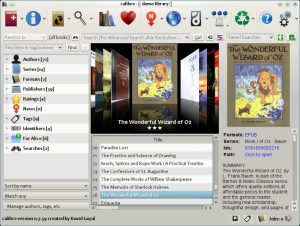
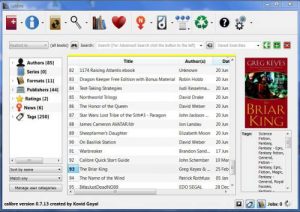
There are 4 main parts to the Calibre user interface, the book list, tag list, book detail box, and search bar. Each of these sections can be re-sized by dragging the elements to as large or small as desired, making them completely disappear or take up the entire view.

Book List: The list of ebooks is organized into various columns that can be customized in a number of ways. Hide columns by right clicking, drag headings to rearrange the column layout, and sort by clicking the header title. You can even create custom columns with whatever properties desired by clicking preferences, then interface, then click the plus button to add a column and determine what type of properties you want it to have.

Search Bar: The search bar works just like any other search box. Type in a name or keyword to show only ebooks using that term. By default, search will go through all the book’s metadata looking for a match, not just the book’s title or tags. To restrict the search to a specific column or tag, such as Author or Title, simply type the name of the column or tag before the search term, i.e. authors:king or title:fire.

To include multiple search terms, use the same method just separate the terms and place an “and” between them, such as authors:king and title:fire. This will show ebooks authored by King with the word Fire in the title. Once you create a search term like this, you can save it for future use by using the small box to the right of the main search bar.

Tag Browser: The tab browser is the box to the left of the main book list. This offers another way to search and organize ebooks. Clicking on a tag will restrict visible ebooks to that tag, hold shift to select multiple tags at once, clicking twice will show everything but that tag. New tags can be created by clicking on manage user categories below the tag browser, and tags can be hidden by right-clicking them.

Book Details Pane: The book details pane shows the book cover, description, formats, and other metadata. The cover and metadata can be gathered or changed by right-clicking on an ebook and selecting edit meta information and then selecting download metadata and covers. By clicking on the details pane, a new full-sized window launches.

Calibre Video Tutorial Part 2

In this video, the creator of Calibre, Dr. Kovid Goyal, gives a tutorial on how to use Calibre’s advanced sorting options, running searches, and shows different ways to organize your ebook library using tags, categories, and columns, among other helpful tips and tricks.

How to Get Kindle, Nook, Sony e-Subscriptions for Free

USA Today

Before you buy a newspaper or magazine subscription for your Kindle, Nook, Sony, or other ebook reader, you should try using Calibre’s news fetch feature first.

While reviewing the Graphite Kindle DX this past week, I download the Kindle Edition of USA Today and compared it to Calibre’s free version—the results were surprising.

First off, some background info. The Kindle Subscription of USA Today costs $11.99 per month and delivers Monday through Friday wirelessly to the Kindle each morning.

The Calibre version is free, delivers everyday, and costs nothing. You can get the daily news via the Calibre content server or have it automatically emailed.

So what’s the free version look like compared to the paid version?

They two are pretty much identical. I had trouble keeping track of which one was the Calibre version and which one was the Kindle version. About the only way to tell is to go all the way to the first page to see if it says Kindle Edition or Calibre.

They both share the same news stories and layout, each has a picture at the start of the article if it has one, and each is organized into sections. The article sections differ slightly, and the Calibre version says USA Today Mobile because it uses the mobile news feed to create the newspaper ebook.

Not all subscriptions will work as well as USA Today though; it requires some initial testing. Time, for instance, comes back with short, abridged articles that require a subscription for the whole story.

I also compared the New Yorker. Both editions had the same articles. The Kindle Edition has a better layout and the articles are broken down into section whereas the Calibre version has 50 articles in one section. The Kindle Edition doesn’t have any pictures and the Calibre version does have some.

Below is a list of the top twenty Calibre News Feeds. A longer list of 50 can be found here.

Make sure to check out this post for help getting started with Calibre.

  • Wired Magazine
  • The Economist – Free Edition
  • Spiegel Online (German)
  • The Guardian
  • Engadget
  • Newsweek
  • Time
  • CNN
  • El Pais
  • USA Today
  • CNET News
  • Dilbert
  • Die Zeit Nachrichten
  • The New Yorker
  • heise
  • The BBC
  • The Onion
  • BBC News (fast)
  • Scientific American
  • New York Times Top Stories
  • Kindle Format Conversion Guide

    ePub Logo

    This article outlines how to convert EPUB files and other file types into a format compatible with a Kindle.

    One option is to use the Kindle Personal Document Service and have Amazon convert the files into their proprietary AZW format. The downside is that only certain formats can be converted. For other file types you’ll need to learn how to convert them yourself using the instructions below.

    Once you have the proper software installed, converting PDF, EPUB, LIT, and other formats into a Kindle-compatible format takes a few quick steps for any non-encrypted ebooks and documents.

    To begin, skim the format list below to see if the format you are trying to convert is supported by the Kindle conversion service. If not, skip down to the next section to learn how to use Calibre to convert formats.

    Amazon’s Format Conversion

    When using the Kindle Personal Document Service to convert formats, you can have the converted files sent to your Kindle wirelessly for a delivery fee or have them sent to an email address for free and then transfer them to the Kindle via USB or have them delivered via WiFi for the newer models.

    Amazon will convert and wirelessly deliver the following format types:

    • Microsoft Word (.DOC) and (.DOCX)
    • Structured HTML (.HTML) and (.HTM)
    • Rich Text Format (.RTF)
    • PDF (.PDF)
    • Images: JPEG, GIF, PNG, and BMP

    To make converting multiple files easier, the above formats can be packaged into a single ZIP file and sent to the Kindle conversion service.

    Setting Up the Kindle Conversion Service

    Go to Amazon’s Manage Your Kindle page and sign-in to your Amazon account. Then click on “Edit Info” under the Kindle section. Change the Kindle email address to whatever you want or leave it as is—then memorize it or write it down, save changes, and close the pop-up.

    Paid Delivery: If you want to pay to have the converted documents delivered to your Kindle wirelessly via Whispernet, scroll down to the section labeled “Your Kindle Approved E-mail List”. Add the email address from the previous step to your Kindle’s whitelist, (your-choice)@kindle.com.

    The delivery fee is 15 cents per MB in the US and 99 cents per MB outside the US. A typical ebook ranges from 1/3 to 3/4 of a MB.

    Free Delivery: To avoid wireless delivery charges, you can have the converted documents delivered to your primary email address to add to your Kindle via USB cable, or have them delivered to a Kindle with WiFi so that you don’t get charged a delivery fee for using the 3G wireless. Just send the files to this address instead of the paid delivery one shown above, (your-choice)@free.kindle.com.

    If you are having trouble with any of this, see Amazon’s format conversion help page.

    Converting Formats Using Amazon’s Conversion Service

    1. Open a new email.
    2. Put (your-choice)@kindle.com into the address line for paid delivery to your Kindle, or put (your-choice)@free.kindle.com to have the files delivered to the primary email address associated with your Amazon account.
    3. Attach the files you want to convert to the email (25 max and 50MB each max).
    4. Send email—no subject or writing needed unless the file you want to convert is a file type that is supported, such as PDF, in which case you’ll need to type “convert” into the subject line. Otherwise it will just send the PDF to the Kindle as is, instead of converting it.

    Conversion typically takes anywhere from a few seconds to 5 minutes.

    Using Calibre to Convert Formats for Kindle

    Calibre eBook Management

    Calibre is the most comprehensive, easy to use ebook managing tool there is. If you haven’t downloaded and set up Calibre yet, visit this other post on how to get started with Calibre eBook Managemant.

    During the Calibre setup process, make sure to select Amazon Kindle when the wizard asks for a default device. This will ensure that EPUB and other formats are automatically converted to MOBI for optimal viewing on the Kindle.

    Converting Formats With Calibre

    According to the Calibre manual, the following format types can be converted to a Kindle format (MOBI): CBZ, CBR, CBC, CHM, EPUB, FB2, HTML, LIT, LRF, ODT, PDF, PRC, PDB, PML, RB, RTF, TCR, TXT.

    Some file types convert better than others. EPUB to MOBI and vice versa usually works really well. You can also try applying some advanced code and settings for complex conversions of specific formats as outlined in the Calibre conversion manual.

    Once you’ve got Calibre installed and up and running and have added some ebooks to the library, you can start converting the documents and ebooks one at a time by highlighting them and clicking the “Convert eBooks” button. Highlight multiple documents by holding down shift or control while clicking to convert them all at once. By selecting one at a time you can edit the books metadata (title, author, series, etc) and description.

    An easier way is to just plug the Kindle to the computer’s USB, let Calibre detect it, and then click on the ebooks you want to send to the Kindle and click “Send to Device”. Calibre will automatically convert them to MOBI as it sends them to the Kindle.

    Free Wireless Delivery

    One last thing to note, Calibre has a built-in web server that you can setup to access your ebook collection using the Kindle’s web browser. Calibre can also email your books, news, and documents to a Kindle using a free gmail account. These can be set up in the Preferences menu.

    Getting Started with Calibre eBook Management

    calibre

    Calibre Overview

    If you haven’t yet started using Calibre (pronounced Caliber) for managing your ebook collection, now is a good time to learn how to get started. Calibre is undisputedly the best ebook managing tool on the planet. And the best part is, it’s free.

    Calibre can do everything from displaying ebooks in its ebook viewer to converting formats into something more compatible for a specific ereader. With it you can organize your entire ebook library any way that you choose, and sync all your content with your favorite reading devices. You can easliy edit all your ebooks’ metadata and descriptions. And Calibre can even search the internet and download metadata and book covers at the click of a button.

    Additionally, you can set up Calibre to fetch RSS news feeds from around the web and automatically convert them into an ebook to be sent to your device, no subscription fee required. The news feeds are setup for many of the popular news sources like Newsweek, The Wall Street Journal, BBC news, and 100′s of others—or you can create a new recipe to collect an RSS news feed that’s currently not supported.

    4 Quick Steps to Getting Started with Calibre

    1. Install Calibre: To get started, download Calibre from http://calibre-ebook.com/download. It’s available for Windows, OS X (Mac), and Linux.

    Once you install Calibre, the welcome wizard will guide you through the installation process. First you’ll be asked where you want Calibre to save your files. Calibre will copy all your ebooks into a hierarchical file system.

    Next, you’ll be asked to choose your specific type of ebook reader so that Calibre can determine the optimum format to output when converting files. You can change this later so don’t worry if you don’t have an ereader yet.

    2. Adding eBooks and News Feeds: If you already have some ebooks on your hard drive, loading them into Calibre is as easy as clicking on the “Add Books” button in the upper left corner of the program’s home menu. Select the folder with your ebooks in it and then Calibre will import the entire folder at once, or you can just choose individual titles.

    If you don’t have any ebooks, what are you waiting for? You can find millions of freebies by checking out the websites listed on our free ebooks page, or you can find the latest free titles in the free ebooks category of this blog. If you are looking to buy ebooks, here’s a list of the most prominent ebook stores.

    To add RSS news feeds to your Calibre library, simply click on the “Fetch News” button. This brings up a list of all the currently supported news sources. Select the feed you want and then you can choose to download it once or setup a schedule to automatically download it each morning or whenever you specify.

    Calibre collects the articles and then converts them into ebooks that includes the full versions of the articles, along with the associated images.

    3. Editing Metadata: This step is optional but makes sorting and organizing your ebooks a lot easier in the long run. You can enter metadata—author names, book titles, tags, book description, etc—manually yourself or you can have Calibre search for them online, along with the book covers, to automatically fill in any missing information.

    4. Transferring eBooks to a Reader: You can read your DRM-free ebooks using the Calibre ebook viewer on your computer, or you can send them to your favorite reading device as easily as clicking on the “Send to Device” button. Calibre will automatically detect your device when you plug it in to the USB port of your computer.

    If the ebook you are sending to the device is not a supported format, Calibre will convert it to the most suitable format for your reader automatically.

    And for devices like the iPhone, iPad, and Smartphones that can’t connect via USB, you’ll need to setup the Calibre content server in the preferences menu so that you can use an app to download your ebooks to the device from a remote location.

    Also, with the Calibre content server you can access your ebook collection using a web browser from any computer anywhere in the world, and you can set it up to email your ebooks and downloaded news automatically.

    Calibre Video Tutorial

    In the video below the creator of Calibre, Dr. Kovid Goyal, gives a tutorial on how to setup Calibre, add ebooks, edit ebook meta data, how to convert and send ebooks to a device, and how to fetch news feeds, among other helpful tips and tricks.

    Check this new post for an article and video with some advanced tips and tricks for using Calibre ».

    Keep Updated

    Subscribe Get Email Updates

    rss RSS Feed

    Facebook Follow on Facebook

    Twitter Follow on Twitter

    YouTube YouTube Channel

    Support This Site

    Find this website helpful? If so, please help support this site. It's free, easy, and only takes a couple seconds. Learn how »

    Latest Reviews
    Latest Blog Posts